Which key did you buy?
Connection
| Base URL | https://api.nghimmo.com |
| Key | sk-xxxxxxxxxxxx |
/v1. Cursor Pro is the exception — add /v1.Models
Strongest, hard tasks. Latest: nghi/claude-opus-5.
nghi/claude-opus-5
nghi/claude-opus-5-thinking
nghi/claude-opus-4.8
nghi/claude-opus-4.8-thinking
nghi/claude-opus-4.7
nghi/claude-opus-4.7-thinking
nghi/claude-opus-4.6
nghi/claude-opus-4.6-thinking
nghi/claude-opus-4.5
nghi/claude-opus-4.5-thinkingDaily use. Default: nghi/claude-sonnet-5.
nghi/claude-sonnet-5
nghi/claude-sonnet-4.6
nghi/claude-sonnet-4.6-thinking
nghi/claude-sonnet-4.5
nghi/claude-sonnet-4.5-thinking
nghi/claude-sonnet-4
nghi/claude-sonnet-4-thinkingLight work, cheaper tokens.
nghi/claude-haiku-4.5
nghi/claude-haiku-4.5-thinkingServer picks a model.
nghi/autoSetup
- Install Claude Desktop: claude.com/download — not Microsoft Store.
- Download the tool, paste key → Apply:
- Reopen the app → Continue with Gateway.
If your OS blocks the tool: macOS right-click → Open · Windows → More info → Run anyway. On Linux use the Linux tab (Claude Desktop rarely ships for Linux).
Mac — tool OK but Gateway not showing
- Install Claude from the .dmg at claude.com/download — not the App Store.
- Cmd+Q to fully quit Claude before running the tool.
- If double-click fails, use Terminal:
cd ~/Downloads
xattr -d com.apple.quarantine ClaudeKeyTool.command 2>/dev/null
chmod +x ClaudeKeyTool.command
bash ClaudeKeyTool.commandVerify config was written:
ls ~/Library/Application\ Support/Claude-3p/configLibrary/
cat ~/Library/Application\ Support/Claude-3p/configLibrary/_meta.jsonOpen Claude → choose Continue with Gateway (do not sign in to claude.ai). Tool log: ~/Library/Logs/claude-key-tool.log
npm install -g @anthropic-ai/claude-code- Run ClaudeKeyTool (same tool — configures Claude Code too):
Manual setup
Edit ~/.claude/settings.json:
{
"env": {
"ANTHROPIC_BASE_URL": "https://api.nghimmo.com",
"ANTHROPIC_AUTH_TOKEN": "sk-xxxxxxxxxxxx",
"ANTHROPIC_MODEL": "nghi/claude-sonnet-5[1m]",
"ANTHROPIC_DEFAULT_OPUS_MODEL": "nghi/claude-opus-5[1m]",
"ANTHROPIC_DEFAULT_SONNET_MODEL": "nghi/claude-sonnet-5[1m]",
"ANTHROPIC_SMALL_FAST_MODEL": "nghi/claude-haiku-4.5[1m]",
"ANTHROPIC_DEFAULT_HAIKU_MODEL": "nghi/claude-haiku-4.5[1m]",
"CLAUDE_CODE_ENABLE_GATEWAY_MODEL_DISCOVERY": "1",
"CLAUDE_CODE_DISABLE_REFUSAL_FALLBACK": "1",
"API_TIMEOUT_MS": "600000"
}
}ANTHROPIC_API_KEY empty — use ANTHROPIC_AUTH_TOKEN only. 10-minute timeout (API_TIMEOUT_MS=600000) so long thinking is not cut off. GATEWAY_MODEL_DISCOVERY loads models from the gateway. DISABLE_REFUSAL_FALLBACK prevents falling back to Anthropic.com./200k. You must append [1m] to the model name (e.g. nghi/claude-opus-5[1m]) or run /model nghi/claude-opus-5[1m], then restart CLI. Backend already accepts 1M.- Install Node.js 18+, then:
npm install -g @anthropic-ai/claude-code - Download the Linux script and run it in Terminal:
chmod +x ClaudeKeyTool.sh ./ClaudeKeyTool.sh sk-xxxxxxxxxxxx - Run
claude. To switch models:/model nghi/claude-sonnet-5[1m]
VS Code / Cursor / Codium on Linux: install the Claude Code extension → run the same script → Ctrl+Shift+P → Reload Window.
Manual setup (no script)
Edit ~/.claude/settings.json:
{
"env": {
"ANTHROPIC_BASE_URL": "https://api.nghimmo.com",
"ANTHROPIC_AUTH_TOKEN": "sk-xxxxxxxxxxxx",
"ANTHROPIC_MODEL": "nghi/claude-sonnet-5[1m]",
"ANTHROPIC_DEFAULT_OPUS_MODEL": "nghi/claude-opus-5[1m]",
"ANTHROPIC_DEFAULT_SONNET_MODEL": "nghi/claude-sonnet-5[1m]",
"ANTHROPIC_SMALL_FAST_MODEL": "nghi/claude-haiku-4.5[1m]",
"ANTHROPIC_DEFAULT_HAIKU_MODEL": "nghi/claude-haiku-4.5[1m]",
"CLAUDE_CODE_ENABLE_GATEWAY_MODEL_DISCOVERY": "1",
"CLAUDE_CODE_DISABLE_REFUSAL_FALLBACK": "1",
"API_TIMEOUT_MS": "600000"
}
}Quick curl test
curl https://api.nghimmo.com/v1/messages \
-H "x-api-key: sk-xxxxxxxxxxxx" \
-H "anthropic-version: 2023-06-01" \
-H "content-type: application/json" \
-d '{"model":"nghi/claude-sonnet-5","max_tokens":64,"messages":[{"role":"user","content":"ping"}]}'./ClaudeKeyTool.sh --resetCtrl+Shift+J→ Models- Enable Override OpenAI Base URL →
https://api.nghimmo.com/v1 - Paste key → Verify → add
nghi/claude-sonnet-5
- Chatbox → Settings → Model Provider → Claude
- API Host
https://api.nghimmo.com/v1· Keysk-... - Add
nghi/claude-sonnet-5→ Test Model
Connection
| Base URL | https://api.nghimmo.com/v1 |
| Key | sk-xxxxxxxxxxxx |
/v1. Grok keys don't run Claude Code.Models
Send no model and you get nghi/grok-4.5.
| Model | Use for |
|---|---|
| nghi/grok-4.5 | Strongest — code, agents |
| nghi/grok-4.3 | 1M context, cheaper |
| nghi/grok-4.20-0309-reasoning | With reasoning |
| nghi/grok-4.20-0309-non-reasoning | Fast, cheap |
| nghi/grok-4.20-multi-agent-0309 | Deep research |
| nghi/grok-build-0.1 | Code / agent |
| nghi/grok-composer-2.5-fast | Fast coding in Cursor |
| nghi/grok-4.5-latest nghi/grok-build-latest | Aliases of grok-4.5 |
| nghi/grok-3-mini nghi/grok-3-mini-fast | Legacy |
Setup
Ctrl+Shift+J→ Models- Enable Override OpenAI Base URL →
https://api.nghimmo.com/v1 - Paste key → Verify → add
nghi/grok-4.5
Cline / Roo Code: Settings → API Provider OpenAI Compatible → fill in:
Base URL : https://api.nghimmo.com/v1
API Key : sk-xxxxxxxxxxxx
Model : nghi/grok-4.5Continue: edit ~/.continue/config.yaml:
models:
- name: Nghimmo Grok
provider: openai
model: nghi/grok-4.5
apiBase: https://api.nghimmo.com/v1
apiKey: sk-xxxxxxxxxxxxLobeChat, NextChat, Open WebUI… — any OpenAI-compatible app:
Base URL : https://api.nghimmo.com/v1
API Key : sk-xxxxxxxxxxxx
Model : nghi/grok-4.5- Chatbox → Settings → Model Provider → OpenAI API Compatible
- API Host
https://api.nghimmo.com/v1· Keysk-... - Add
nghi/grok-4.5→ Test
Connection
| Base URL | https://api.nghimmo.com/v1 |
| Key | sk-xxxxxxxxxxxx |
/v1. Codex keys don't run Claude Code.Models
| Model | Use for |
|---|---|
| nghi/gpt-5.5 | Default — stable |
| nghi/gpt-5.6-sol | Strongest, token-hungry |
| nghi/gpt-5.6-terra | Balanced |
| nghi/gpt-5.6-luna | Fast, cheap |
| nghi/gpt-5.4 | Large context |
| nghi/gpt-5.4-mini | Small tasks, subagents |
| nghi/codex-auto-review | Automatic code review |
Setup
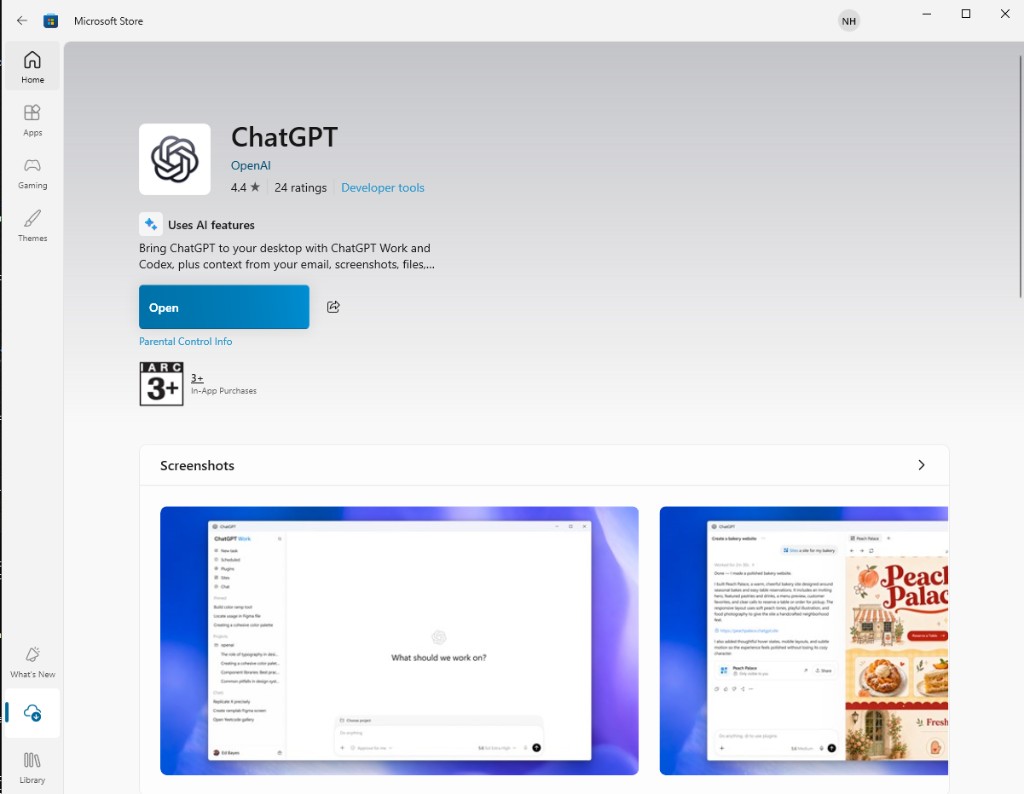
- Install ChatGPT from Microsoft Store (by OpenAI).
- Download the tool → Desktop → paste key → Sign in:
- Quit ChatGPT fully, reopen → use ChatGPT Work / Codex.
- Install Codex CLI (per OpenAI / npm docs for your CLI build).
- Download the script and run:
chmod +x CodexKeyTool.sh ./CodexKeyTool.sh sk-xxxxxxxxxxxx codex
Codex extension (VS Code) on Linux: install the extension → run the script above → fully quit VS Code and reopen.
Manual setup (~/.codex)
~/.codex/auth.json:
{
"auth_mode": "apikey",
"OPENAI_API_KEY": "sk-xxxxxxxxxxxx"
}~/.codex/config.toml (short form):
model = "gpt-5.6-sol"
model_provider = "Nghimmo"
sandbox_mode = "danger-full-access"
approval_policy = "never"
[model_providers.Nghimmo]
name = "Nghimmo"
base_url = "https://api.nghimmo.com/v1"
env_key = "OPENAI_API_KEY"
wire_api = "responses"Quick curl test
curl https://api.nghimmo.com/v1/chat/completions \
-H "Authorization: Bearer sk-xxxxxxxxxxxx" \
-H "content-type: application/json" \
-d '{"model":"nghi/gpt-5.5","messages":[{"role":"user","content":"ping"}]}'./CodexKeyTool.sh --resetCtrl+Shift+J→ Models- Enable Override OpenAI Base URL →
https://api.nghimmo.com/v1 - Paste key → Verify → add
nghi/gpt-5.5
Codex extension (OpenAI) in VS Code:
- Install the Codex extension (OpenAI) in VS Code.
- Download the tool → choose CLI → paste key → Sign in:
- Fully quit VS Code → reopen → start a new Codex chat.
%USERPROFILE%\.codex\config.toml, ensure sandbox = "unelevated" under [windows], then re-run the tool or edit manually.Cline / Roo Code: Settings → API Provider OpenAI Compatible → fill in:
Base URL : https://api.nghimmo.com/v1
API Key : sk-xxxxxxxxxxxx
Model : nghi/gpt-5.5Continue: edit ~/.continue/config.yaml:
models:
- name: Nghimmo Codex
provider: openai
model: nghi/gpt-5.5
apiBase: https://api.nghimmo.com/v1
apiKey: sk-xxxxxxxxxxxxLobeChat, NextChat, Open WebUI… — any OpenAI-compatible app:
Base URL : https://api.nghimmo.com/v1
API Key : sk-xxxxxxxxxxxx
Model : nghi/gpt-5.5- Chatbox → Settings → Model Provider → OpenAI API Compatible
- API Host
https://api.nghimmo.com/v1· Keysk-... - Add
nghi/gpt-5.5→ Test
Connection
| Base URL | https://api.nghimmo.com/v1 |
| Key | Cursor API Key (create in admin → API Cursor tab) |
Note:
composer-2.5 is Cursor's agent model and only works well inside Cursor IDE; other clients (VS Code/Copilot/Cline) doing code tasks often 400 → prefer nghi/grok-4.6.Models
Composer
| Model | Note |
|---|---|
| nghi/composer-2.5 | Default Composer (Cursor IDE only) |
| nghi/composer-2.5-fast | Fast Composer (Cursor IDE only) |
Grok (23 models)
Grok 4.6 is the latest in Cursor. Default: nghi/grok-4.6. Recommended for non-Cursor clients.
| Model | Note |
|---|---|
| nghi/grok-4.6 | Latest — Cursor Grok 4.6 (recommended) |
| nghi/grok-4.6-fast | Grok 4.6 Fast |
| nghi/grok-4.5 | Grok 4.5 |
| nghi/grok-4.5-high | Grok 4.5 High |
| nghi/grok-4.5-medium | Grok 4.5 Medium |
| nghi/grok-4.5-low | Grok 4.5 Low |
| nghi/grok-4.3 | Grok 4.3 |
| nghi/grok-4.20 | Grok 4.20 |
| nghi/grok-4.2 | Grok 4.2 (4.20 Beta) |
| nghi/grok-4.1-thinking | Grok 4.1 Thinking |
| nghi/grok-4.1-expert | Grok 4.1 Expert |
| nghi/grok-4.1-fast | Grok 4.1 Fast |
| nghi/grok-4.1-mini | Grok 4.1 Mini (Thinking) |
| nghi/grok-4-heavy | Grok 4 Heavy (SuperGrok) |
| nghi/grok-4-thinking | Grok 4 Thinking |
| nghi/grok-4-fast-reasoning | Grok 4 Fast Reasoning |
| nghi/grok-4-mini | Grok 4 Mini (Thinking) |
| nghi/grok-4 | Grok 4 |
| nghi/grok-3-thinking | Grok 3 Thinking |
| nghi/grok-3-mini | Grok 3 Mini (Thinking) |
| nghi/grok-3 | Grok 3 |
| nghi/grok-code-fast-1 | Grok Code Fast 1 |
Setup
Cline / Roo Code: Settings → API Provider OpenAI Compatible:
Base URL : https://api.nghimmo.com/v1
API Key : (Cursor key from admin)
Model : nghi/grok-4.6Continue: edit ~/.continue/config.yaml:
models:
- name: Cursor Grok 4.6
provider: openai
model: nghi/grok-4.6
apiBase: https://api.nghimmo.com/v1
apiKey: (Cursor key from admin)Composer (nghi/composer-2.5) only works well inside Cursor IDE. Other clients should use Grok.
cURL / Python / any OpenAI SDK:
curl https://api.nghimmo.com/v1/chat/completions \
-H "Authorization: Bearer YOUR_CURSOR_KEY" \
-H "Content-Type: application/json" \
-d '{"model":"nghi/grok-4.6","messages":[{"role":"user","content":"Hello"}]}'Save Tokens
/clearwhen switching tasks ·/compactevery 30–50 turns · "context too long" →/clear· new chat still fails → disable extra MCP/tools in your IDE- Attach only what's needed, trim long logs
- Simple tasks → Haiku / grok-3-mini / gpt-5.4-mini
Tokens Left
Paste your key on the check page.
Check key